Raw Price Checker FAQ & User Documentation
This document serves as the official user guide and frequently asked questions (FAQ) reference for the Raw Price Checker application. It includes operational instructions, configuration details, and licensing information to ensure smooth deployment and use.
Application Usage
-
There are two methods to open the Settings menu:
Method 1 – Using an Unlock Barcode
- Encode your passcode in Code 128 format.
- Scan the generated barcode as you would any other item.
- The application will open the Settings menu immediately.
Method 2 – Tap Gesture Unlock
- Quickly tap the Scan Barcode icon 7 times in succession.
- When prompted, enter your passcode.
- Tap the Scan Barcode icon once more to reveal the Settings menu.
Default Passcode: The passcode field is empty by default. Simply click Unlock.
For security, set a passcode in Settings and optionally create a Code 128 unlock barcode.
-
To ensure the application cannot be closed by unauthorized users, run it in lockdown mode using a kiosk software.
We recommend Fully Single App Kiosk (www.fully-kiosk.com) for Android devices.
-
The method for auto-starting the app is the same as for lockdown mode. Fully Single App Kiosk allows you to configure the application to launch automatically when the device is powered on.
-
An active internet connection is not required for normal use. The application connects directly to your L-Boss MSSQL database over the local network.
Internet access is only required once for license activation.
-
To configure the app:
- Access the Settings menu (see 1.1 above).
- Adjust the available parameters:
Parameter Description MS SQL IP Address The IP address of the MSSQL server MS SQL Port TCP port number for the MSSQL instance Database Name Name of the database Database Username Database access username Database Password Database access password Unlock PIN Passcode for Settings menu (default empty) Barcode Prefix Optional prefix for scanned barcodes. Example: If Prefixis set to0, a scanned
barcode like1234567890123will be treated as01234567890123.Padding for Missing Digits Character used to pad barcodes under 13 digits. Example: If Paddingis set to0and a
barcode12345is scanned, the app treats it as000000012345(for 13-digit EAN).Currency Symbol Symbol displayed before price. Example: If Currency is set to CA$, a price of9.99will be displayed asCA$ 9.99. Note the space is not added automatically.Timeout Duration in seconds that a price is displayed before returning to the Scan prompt Logo Path File path to the logo image Primary Colour Main interface colour in HEX Secondary Colour Accent colour in HEX License Activation License key entry -
- Connect the scanner to the device (USB or BT) if it is not build into the kiosk.
- If required, scan the manufacturer’s configuration barcodes to:
- Set the scanner to Keyboard Input mode.
- Use Enter as the end-of-input marker.
-
If you do not know your MSSQL port:
-
- Run the following PowerShell command on the MSSQL server. You will be provided with a few ports that the server uses.
Method 1:
Get-NetTCPConnection -State Listen | Where-Object {
(Get-Process -Id $_.OwningProcess).ProcessName -eq "sqlservr"
} | Select-Object -ExpandProperty LocalPort
Method 2:
$base = 'HKLM:SOFTWAREMicrosoftMicrosoft SQL Server'
$instances = Get-ItemProperty "$baseInstance NamesSQL"
$rows = foreach ($p in $instances.PSObject.Properties) {
$instanceName = $p.Name
$instanceId = $p.Value
$ipAllKey = "$base$instanceIdMSSQLServerSuperSocketNetLibTcpIPAll"
$props = Get-ItemProperty $ipAllKey
$staticPort = $props.TcpPort
$dynPorts = $props.TcpDynamicPorts
[pscustomobject]@{
Instance = $instanceName
Port = if ($staticPort) { $staticPort } else { $dynPorts }
}
}
$rows | Format-Table -AutoSize - Enter the port numbers from step 1 & Database, Username, etc into the Port Finder The Port Finder tool has a Magnifying glass icon & accessible from the settings page.
- Click on Scan Ports.
- After a few minutes, the tool will list the port that is open. This is the correct port.
-
-
Customizations
-
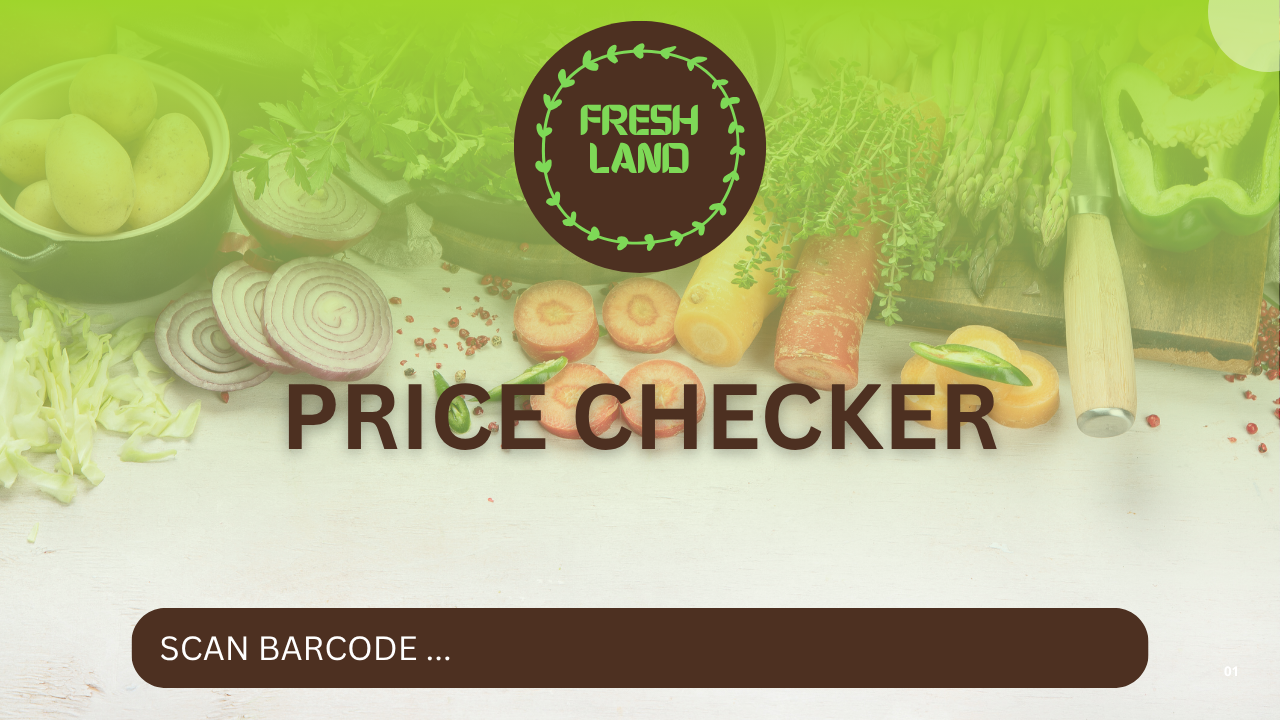
The Raw Price Checker supports a full-screen background image for branding. Below is an example
Steps to Add a Background:
- In Settings, note the current screen resolution (e.g., 1024×768).
- The barcode field is 16px from the bottom.
- Create artwork matching the exact resolution for best fit.
- Save in a supported image format:
- .png or .jpg
- In Settings, set the Logo Path or Background Path to your file.
- Restart the application to apply changes.
Pro Tip: Keep important content away from screen edges to avoid cropping on certain displays.
- In Settings, note the current screen resolution (e.g., 1024×768).
Licensing
-
Email [email protected] for purchase instructions. You will receive payment details and a unique license key.
-
- USD 199 per device (Lifetime license).
- Volume discounts are available. Please contact [email protected]
-
Licenses are bound to a single device and cannot be transferred.
-
Each license is valid for the lifetime of the registered device.
-
- Go to Settings → License Activation.
- Enter your license key.
- Tap Activate.
-
In Settings, click Re-Activate. There is no need to re-enter the key.
-
Ensure the device has an active internet connection during activation.
-
If you are a reseller or system integrator, please reach out to us on [email protected] for partner pricing.
Troubleshooting
-
The app has a build in log accessible from the setting menu to assist you troubling issues.